Access Controls - CPA Firms
The article explains how Firm Administrators in CPA firms can manage user access levels within Crunchafi Lease Accounting by updating user roles—Firm Administrator, Firm User, or Firm Read Only—through the Users tab, enabling control over permissions for firm-level activities and client account management, as well as how to enable or disable user accounts and restrict client account visibility via firm groups.
Access Controls for CPA Firms
This article covers how to control access levels for Firm Users
Follow the instructions in this article to update a user's permissions or disable their account. Firm-level user access can only be managed by users with the Firm Administrator role.
Update Permissions
1. Go to the Users tab in the top navigation bar (confirm you are at the firm view by checking that you are on the Client Accounts default page).
2. Hover over the user's row and click the edit icon at the far right.
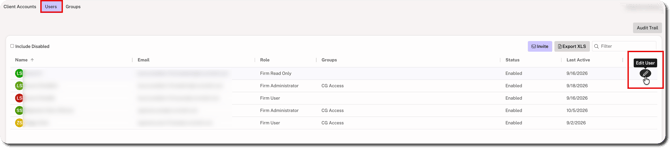
3. Update the Role dropdown based on the permissions they should have for firm-level activity and client account management.
- Firm Administrator: Allows user to manage all settings at the firm level and for all client accounts. Firm Admins can make changes to any setting in the account, including enabling/disabling users and adding new client accounts.
- Firm User: Read-only access at the firm level and all permissions for client accounts. Firm Users cannot create client accounts or modify firm user access.
- Firm Read Only: Read-only access at the firm level and for all client accounts.
NOTE
To disable or enable a firm-level user, skip below for instructions.
Access Control via Firm Groups
Firm Administrators can also change which firm-level users can view which client accounts:
1. Hover over the client's row on the Client Accounts tab and click the edit icon.
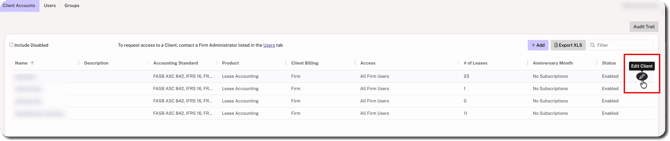
2. Choose Custom for the Client Access field.
3. Select individual users and/or groups (click here for more details on firm groups).
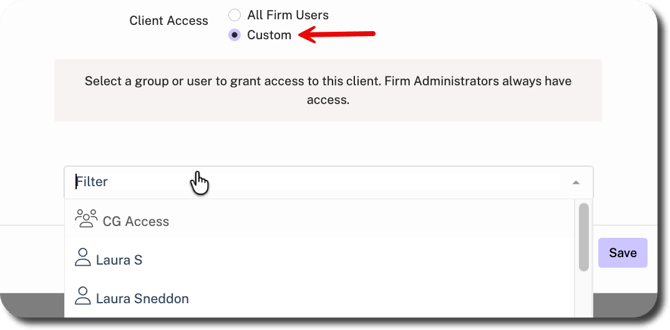
4. Click Save in the bottom-right corner.
Disable a Firm-Level User Account
Disabling an account blocks all access to Crunchafi Lease Accounting for that user (including any client accounts) and removes them from the list.
1. Go to the Users tab and hover over the user's row to click the edit icon.
2. Click on the Disabled option for the Status.
3. Click Save in the bottom-right corner.
Enable a Firm-Level User Account
1. Go to the Users tab and select the Include Disabled box above the list.
2. Hover over the user's row on the list and click the edit icon.
3. Click on the Enabled option for the Status.
4. Click Save in the bottom-right corner.
Was this article helpful?
YesNo