Accessing Crunchafi from Thomson Reuters Guided Assurance
This article provides guidance for Thomson Reuters Guided Assurance and Engagement Manager users on how to access Crunchafi Lease Accounting within their audit workflow, emphasizing the need to ensure the client's lease data is current, referencing the PPC Methodology Playbook for preparation steps, and advising users without Crunchafi accounts to seek firm admin assistance or visit a specified link for more information.
Accessing Crunchafi from Thomson Reuters Guided Assurance
This article applies to Thomson Reuters (TR) Guided Assurance & Engagement Manager users who need direct access to Crunchafi Lease Accounting as part of their audit workflow
Tourial

GET IN TOUCH

reCAPTCHA
Recaptcha requires verification.
protected by reCAPTCHA
Before Continuing
Confirm your client’s Crunchafi lease list is fully up to date for the audit period, including any new leases, terminations, reassessments, modifications, and other updates, and that you have run any relevant Crunchafi reports as covered in our PPC Methodology Playbook.
If your firm is not already using Crunchafi Lease Accounting, click here for more information. If, however, your firm has an account and you need access, contact your firm admin and request a new user invitation.
This article specifically covers how to access Crunchafi from TR Guided Assurance / Engagement Manager. If you need to generate reports from Crunchafi and send them to TR Engagement Manager, click here for instructions.
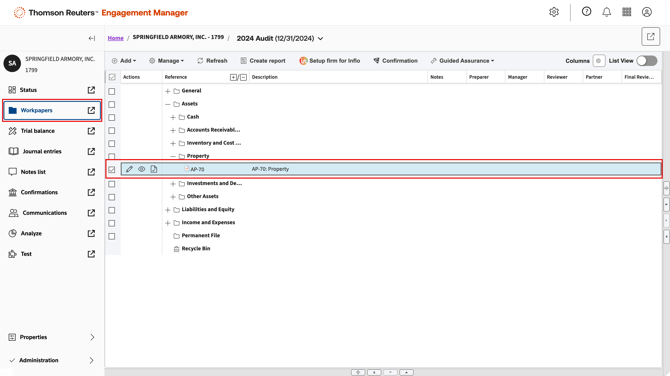
1. From the Workpapers list in TR Engagement Manager, click on the AP-70 Property audit program for the client you are currently viewing.
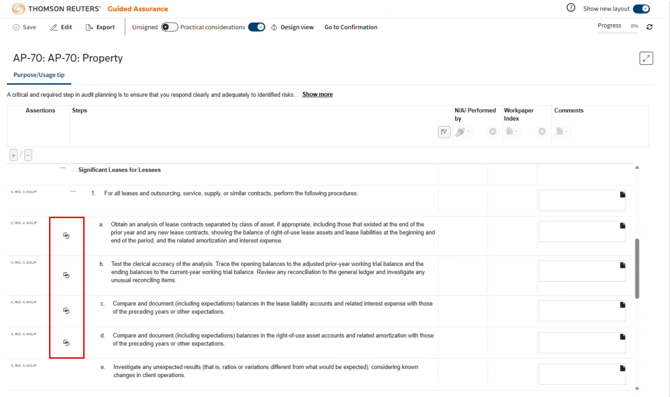
2. Click the Crunchafi icon to the left of the procedure on the TR Guided Assurance list.
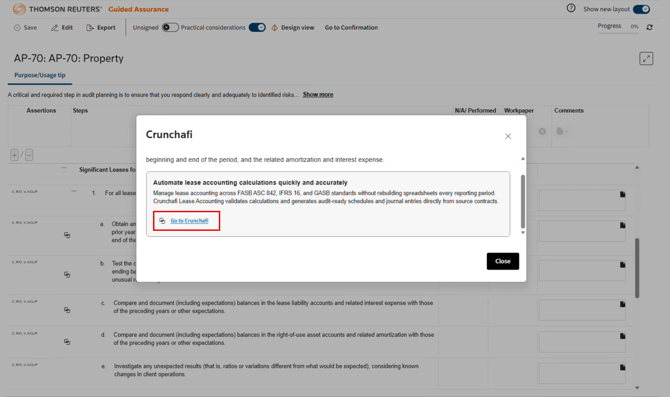
3. Click on Go to Crunchafi when prompted.
4. Enter your email address and click Continue.
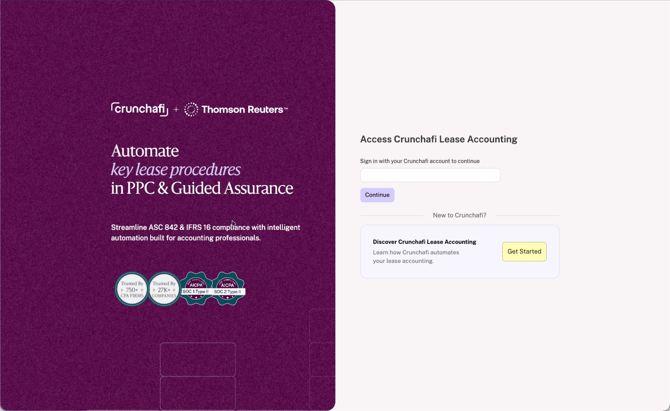
5. If you already logged into Crunchafi, you will be taken to your Client Accounts list. If you are not logged in, you will be prompted for your credentials or signed in via SSO authentication (depending on your account settings).
NOTE
If your firm is not already using Crunchafi Lease Accounting, click the Get Started button on the right side of the page or click here for additional details. If your firm has an account and you need access, contact your Firm Admin and request a new user invitation.
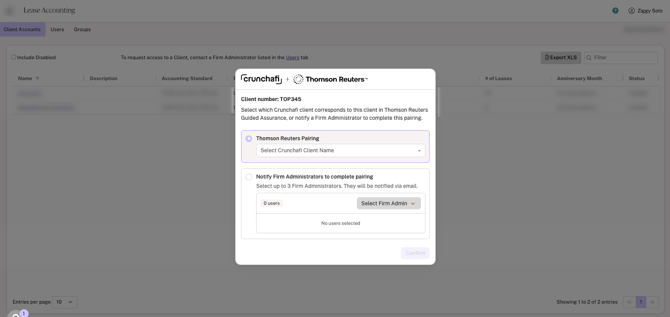
6. You must first match your client from TR Guided Assurance with the associated client account in Crunchafi Lease Accounting. Once pairing is done, you and users from your firm will be taken directly to that client account when coming to Crunchafi from that client in TR Guided Assurance moving forward. Pairing only has to be done one time.
When prompted, do one of the following and then click Confirm:
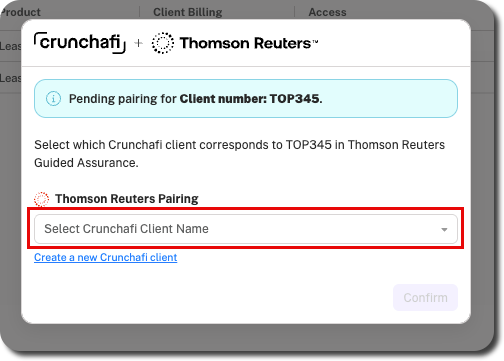
- Select the client name from the Thomson Reuters Pairing dropdown.
- Choose Notify Firm Administrators to complete pairing if you are unsure which client to select or if the client you are looking for is not listed. Select up to 3 firm admins.
NOTE
If you are a Firm Admin and do not see the client name listed, click on Create a new Crunchafi client(only visible to Firm Admins). For instructions on what to do if you receive a pairing request email notification as a firm admin, click here.
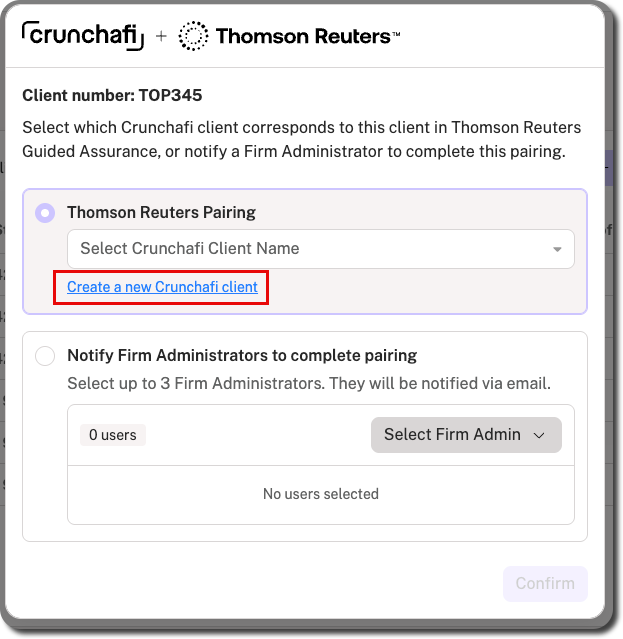
For details on what information is required to create a client, click here.
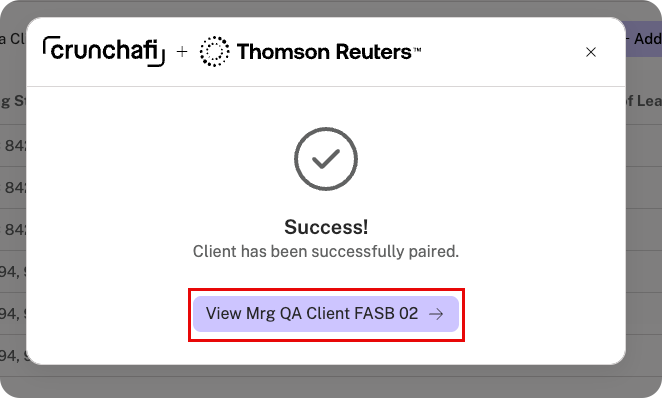
7. If you selected a client and continued with pairing, the success message below appears. Click the View button to go directly to the client account.
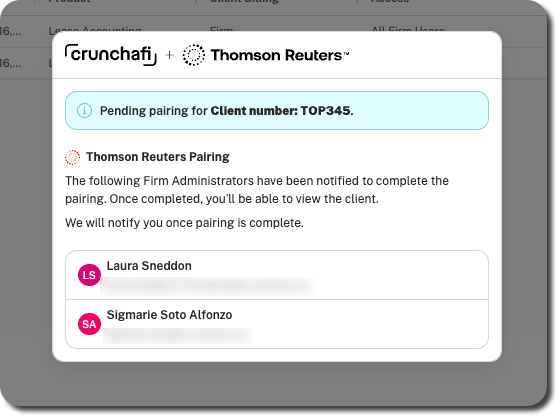
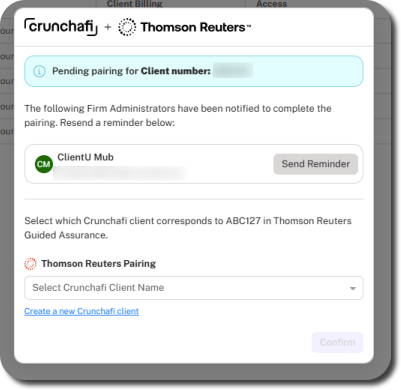
If you notified one or more firm admins, the pending pairing message below appears and the admins will be notified via email to complete the step.
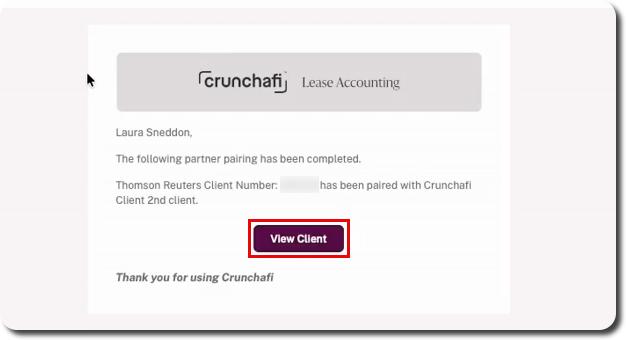
When pairing is completed, you will receive an email notification. Click View Client from the email notification. If not already logged in, you will be prompted for your credentials. Moving forward, you will be taken to this account if coming from this client in TR Guided Assurance.
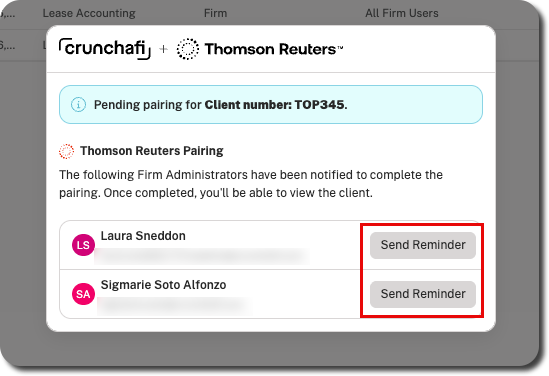
If the requested pairing has not been completed next time you log into Crunchafi Lease Accounting, you can click Send Reminder to send one or more of the designated Firm Admins another email notification.
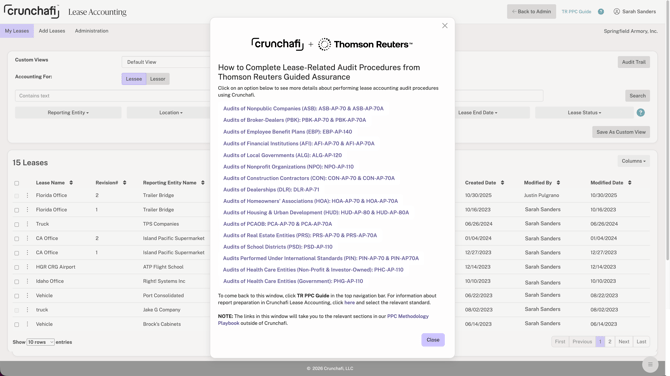
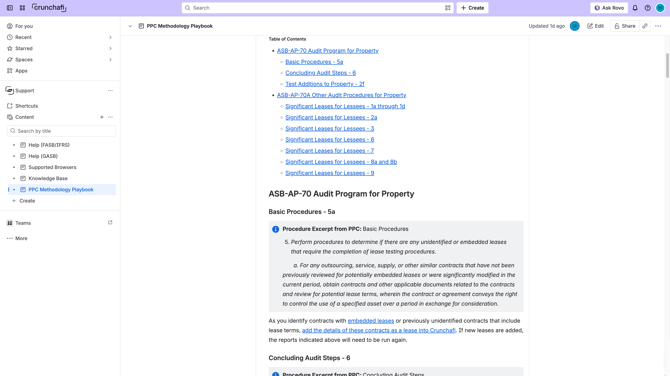
8. From the popup window in the paired client account, select the relevant option to view the procedure details in a separate tab/window. Clicking an option from this list takes you directly to the specific guide section in our PPC Methodology Playbook outside of Crunchafi.
ADDITIONAL NOTES
If the procedure window does not automatically open or you close it, you can open it at any time by clicking TR PPC Guide in the top navigation bar from the My Leases page.
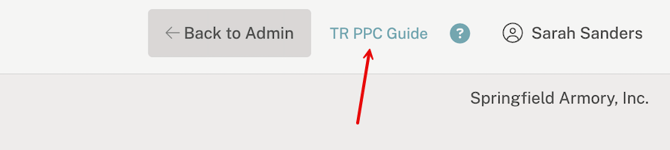
Once you log into Crunchafi Lease Accounting from TR Guided Assurance, the TR PPC Guide option will continue to appear in the top navigation bar from the My Leases page whether you log in again through TR Guided Assurance or from our main login page. You can also view our PPC Methodology Playbook help page at any time for relevant steps and procedure details.
Firm Admin Notification for TR Client Pairing
If you receive an email notification from a user requesting pairing for a TR Guided Assurance client in Crunchafi, click Enable Pairing from the email notification.
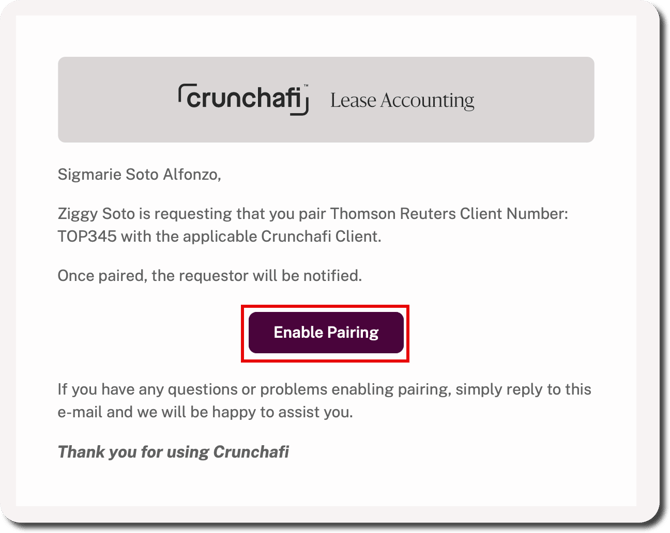
If not already logged into Crunchafi, you will be prompted for your credentials. From the Client Accounts list, select the client name from the dropdown and click Confirm.
The success message below appears. From here, you can dismiss the message or click the View button to go directly to the client account.
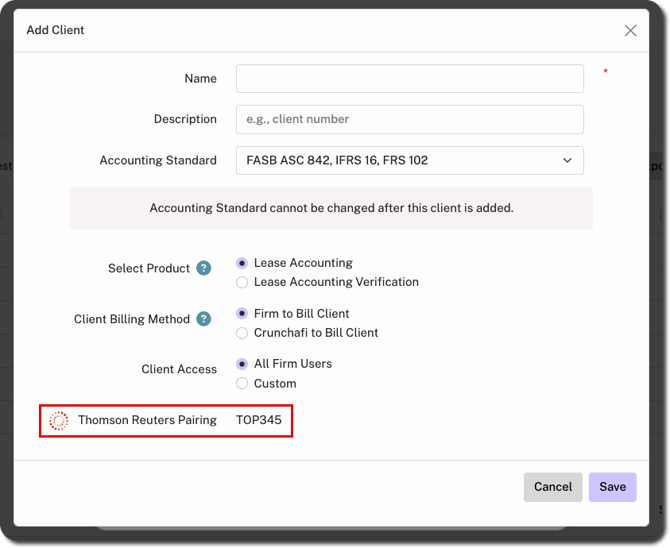
If the client name is not listed, click Create a new Crunchafi client from the pairing window. Fill in and/or select the details (i.e., name, description, standard, product, billing method, and client access) and click Save. This automatically pairs the Crunchafi client with the TR Client Number shown at the bottom of the Add Client window.
Firm Admin View (Not Notified for Pairing)
The following modal appears on the Client Accounts list if you were not designated as a Firm Admin for the pairing request notification, but the request is still pending. As a Firm Admin, you can do the pairing yourself, create a new client (if applicable), or send a reminder to the other firm admin(s) to complete the task.
Was this article helpful?
YesNo