Adding a Lease under GASB
The content provides a step-by-step visual walk-through on how to add a lease under GASB accounting standards using Crunchafi's lease accounting platform, including selecting the appropriate accounting standard and completing the process through an interactive tutorial.
Adding a Lease - GASB
View this walk-through to learn how to add a lease under GASB
Tourial

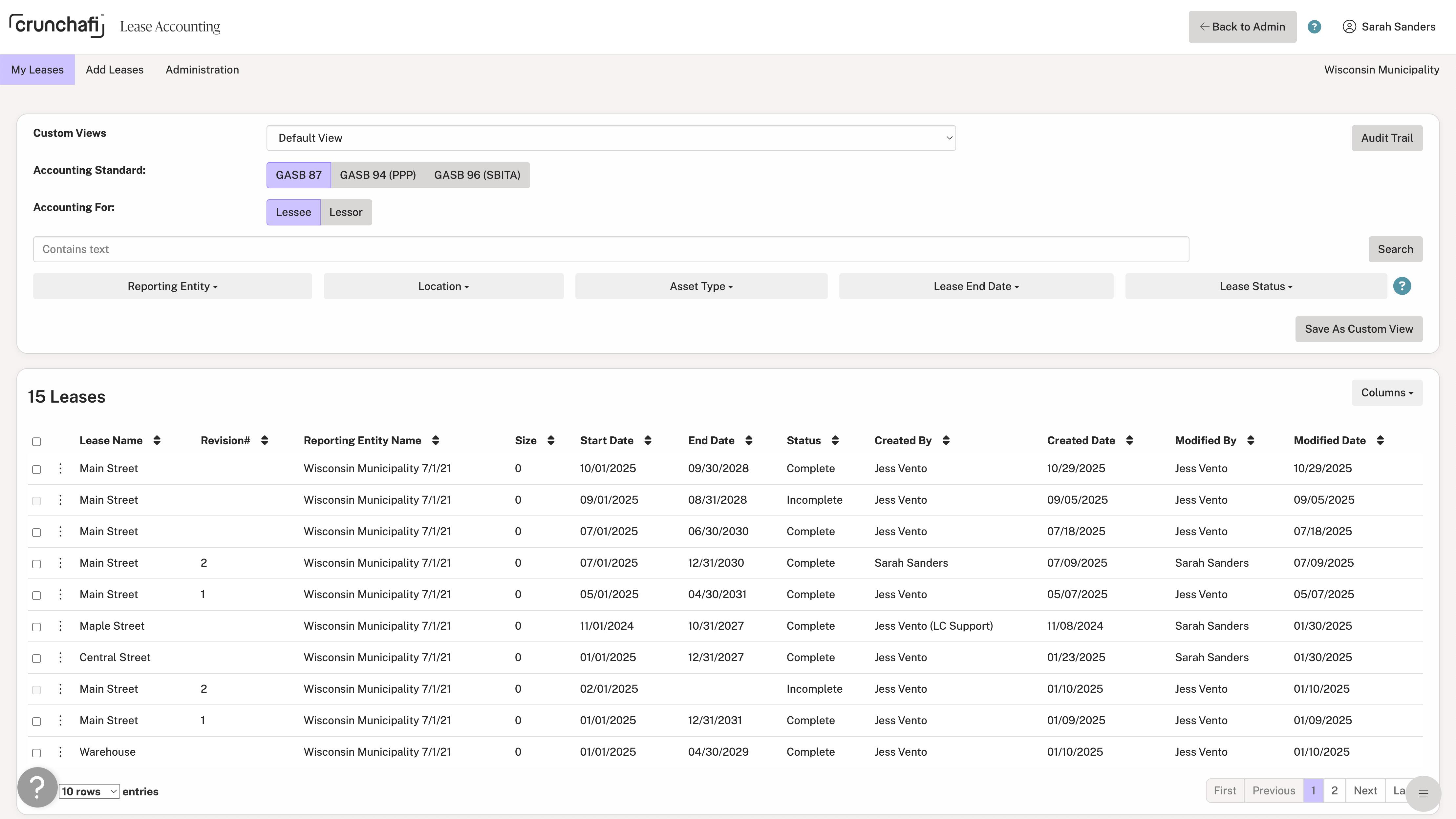
Select the appropriate accounting standard for the calculations.
Back
1/6
Next

reCAPTCHA
Recaptcha requires verification.
protected by reCAPTCHA
Was this article helpful?
YesNo