Adding Client Users to Crunchafi Lease Accounting
The article provides step-by-step instructions for adding new client users to a specific client account in Crunchafi Lease Accounting by navigating to Administration > Users, clicking the Invite button, and entering the user's email, name, and role, while also recommending that each client account have at least one Administrator and linking to related resources about firm-level users and user role differences.
Adding New Client Users
Follow the steps below to add new users to a client account in Crunchafi Lease Accounting
This article covers how to add users to an individual client account. If you are looking for instructions on how to add firm-level users, click here. To learn about the difference between client users and firm users, see our article: Firm Users vs. Client Users.
To add a client user:
1. Go to Administration > Users from the client account.
TIP
Crunchafi recommends that all client accounts have at least one Administrator. To check which client account you are viewing, check the name to the far right.
2. Click the Invite button in the top-right corner of the user list table.

3. Enter the user's email address, first name, and last name, and choose the relevant role.
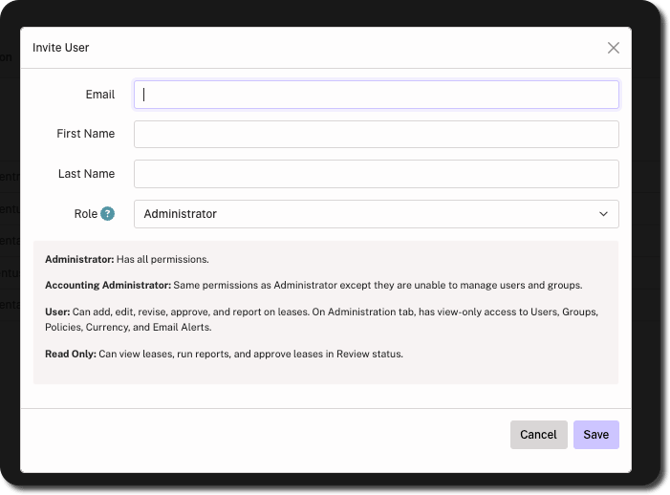
4. Click Save in bottom-right corner.
Once saved, an invitation email is sent to the user with an activation link for account setup.
Was this article helpful?
YesNo