Connecting Directly to Xero
The guide explains how to connect directly to Xero using an admin account in Crunchafi by starting a new data collection, selecting "Connect to accounting system," choosing "Connect directly" as the connection method, setting collection parameters, and notes that if admin login is not possible, a secure URL can be generated for report sharing.
Connecting Directly to Xero
Connect directly to Xero with admin account.
Requirements
- An admin account in Xero is required to approve the connection to Crunchafi.
- Confirm that you can access the correct company using that account.
- If logging in as an admin is not an option, consider asking your client to do it on your behalf by generating a secure URL from Crunchafifor report sharing.
Data Collection & Direct Connection
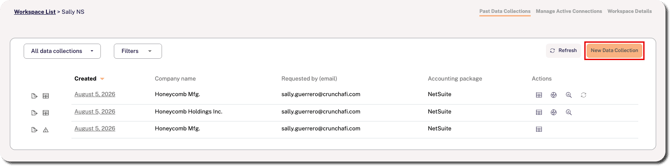
1. Start a new data collection from the workspace.
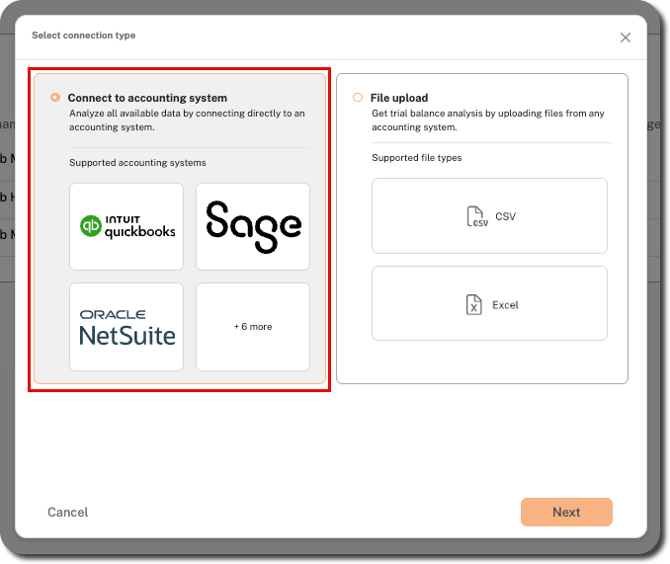
2. Select Connect to accounting system and click Next.
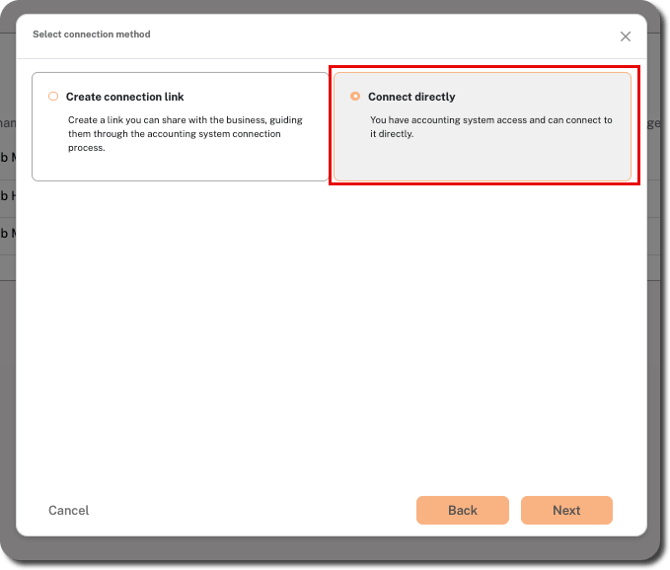
3. Choose Connect directly on the right side as the connection method and click Next.
4. Choose your collection parameters and click Next.
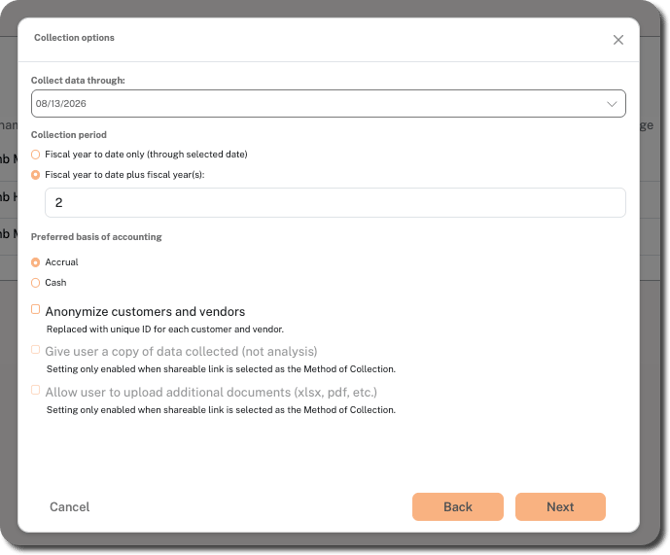
- Collect data through: Defaults to the current date, but you can click on the arrow at the far-right of the field to choose a previous month, day, and year. Use this to specify the end of the period for your collected data.
- Collection period: Defaults to collect the fiscal year to date plus 2 more fiscal years. Use the up/down arrows at the far-right of the field to change the number of additional fiscal years, or choose the Fiscal year to date only option, if applicable.
- Basis of accounting: Choose between Accrual(default) or Cash. For QuickBooks connections, we do not recommend using cash unless you know your accounting system is configured to support it.
- Anonymize customers and vendors: If you prefer to anonymize your customer and vendor data, select this option.
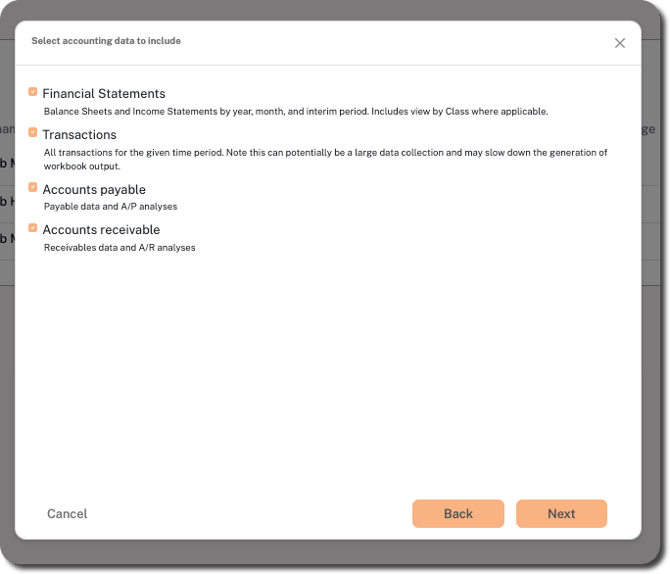
5. Confirm and/or update the types of data you want to include in your collection (i.e., Financial Statements, Transactions, Accounts Payable, and Accounts Receivable). All options are selected by default.
💡 TIP
You can choose to include or not include financial statements and/or transactions, especially if the company you are connecting to has a large volume of data that may slow down workbook production.
6. Click Next.
7. Select Xero.
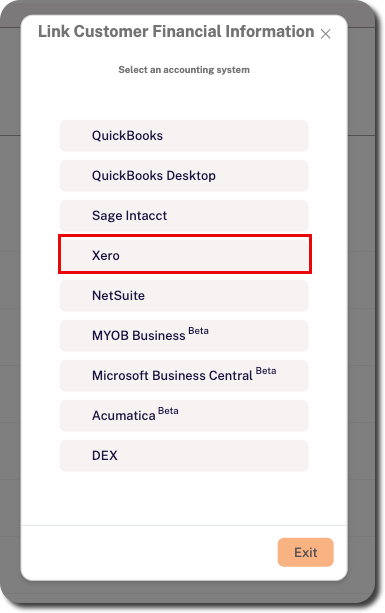
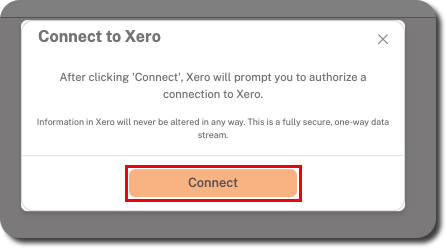
8. Click Connect to log into your Xero admin account.
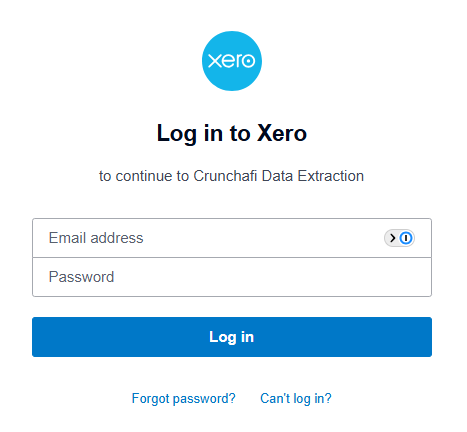
9. Enter your credentials on the Xero login page.
REMINDER
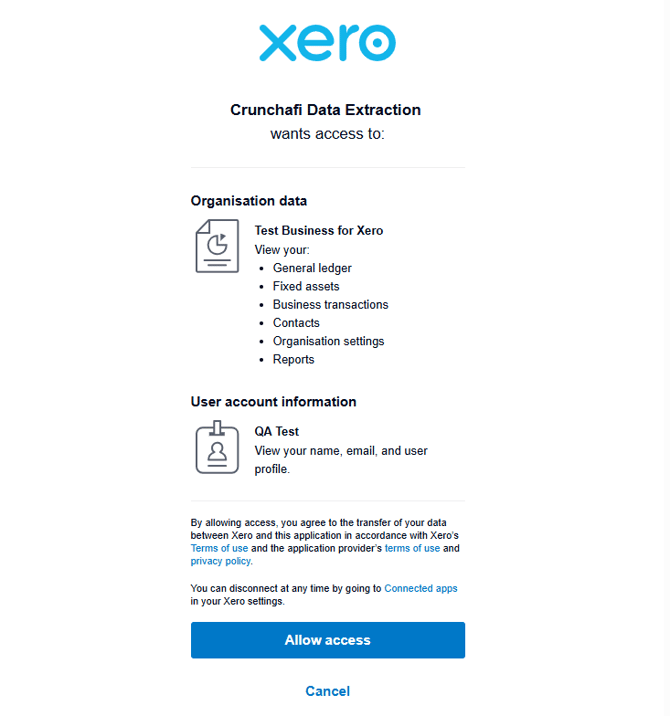
You must log in with an admin account to grant permission to Crunchafi Data Extraction.
10. Click the Allow access button to proceed.
Next Steps
The workspace list will show that the import is in progress.

Once completed, you will see a success message and a link to the appropriate collection details page where you can download the completed workbook(s).

Was this article helpful?
YesNo