Custom Views
The article explains how to create and save custom views in Crunchafi Lease Accounting by applying filters (e.g., Reporting Entity, Asset Type), adjusting visible columns in the Leases table, and saving these settings under a custom view name for quick access and sharing across users in the organization.
Custom Views
Learn how to create custom views for quick filtering of leases
A custom view is used to quickly load a list of leases based on filters and/or columns you frequently apply. For example, this is helpful if you need to quickly view leases that belong to certain Reporting Entities or that are categorized under specific Asset Types.
The default built-in view shows all leases (except those in deleted status) for the selected accounting standard (if applicable) under Lessee or Lessor.
When a custom view is saved, it can be selected by all Crunchafi Lease Accounting users in your organization. The most recent view remains selected when you revisit the My Leases page.
Saving a Custom View
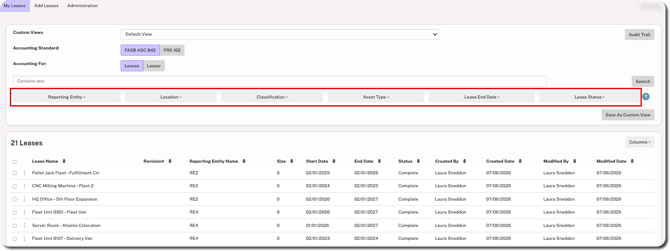
1. Select options from the relevant filter dropdowns, such as Reporting Entity, Asset Type, Lease End Date, or Lease Status.
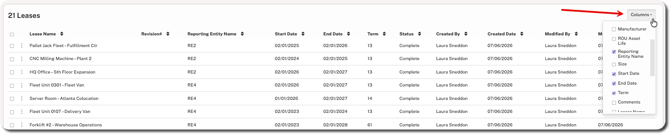
2. Click on the Columns dropdown in the top-right corner of the Leases table to add or hide any columns of information (e.g., show the Term column or hide the Size column).
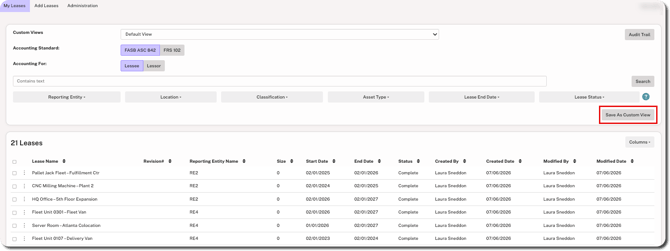
3. Click Save As Custom View under the filter fields.
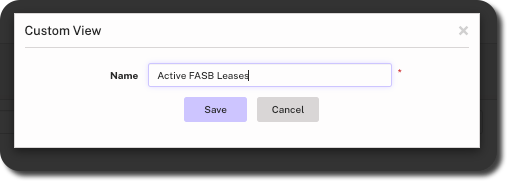
4. Enter the custom view name and click Save.
Deleting a Custom View
1. Choose the view from the Custom Views dropdown on the My Leases page.
2. Click the Delete View button located under the filter fields.
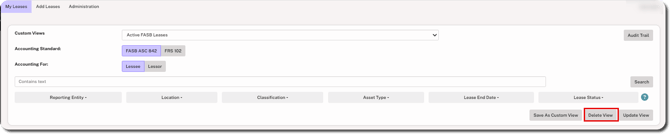
3. Click OK when prompted to confirm.
Updating a Custom View
1. Choose the view from the Custom Views dropdown on the My Leases page.
2. Update the applied filters or the columns that are hidden/shown.
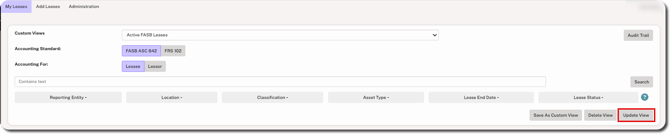
3. Click the Update View button located under the filter fields.
Was this article helpful?
YesNo