Firm Groups
The article details how firm-level groups in Crunchafi Lease Accounting can be created and managed via the Groups tab to organize client accounts for specific teams or users, including steps to add groups, assign members, and link groups to client accounts, with additional support for SSO-managed groups through Active Directory and a note that Firm Administrators retain access to all clients regardless of group settings.
Firm Groups
This article explains the usage and settings within the Groups tab from the firm view
Firm-level groups make client accounts readily available to the right teams or designated user groups. They can be created based on various criteria specific to your firm, and members within the group can be added or removed at any time. The ability to assign groups can be done when adding or editing a client account (see instructions below).
Firms that have implemented SSO can also have their IT teams create and manage groups through Active Directory.
NOTE
Firm Administrators always have access to all clients, regardless of group settings.
Add Groups
1. Go to the Groups tab and click the Add Group button.

2. Enter a name (required) and description (optional).
3. Click the Add Members dropdown to find/select specific firm-level users for this group.
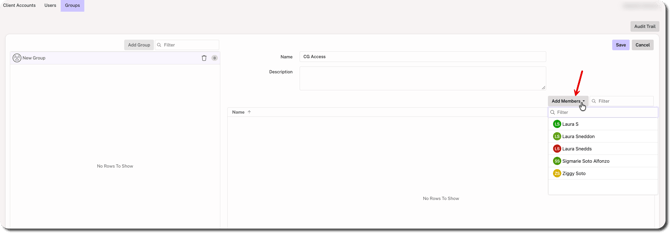
4. Click Save.
Navigate to the Client Accounts page to add groups to specific client accounts.
Assign a Group to an Existing Client Account
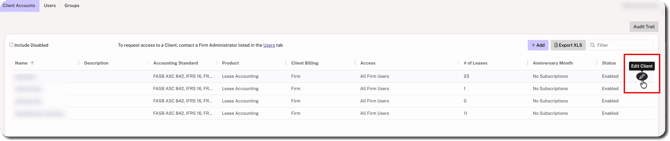
1. Hover over the client account on the list and click the edit icon at the far right.
2. Select Custom for the Client Access field at the bottom of the window.
3. Choose the group(s) and/or individual users that should have access.
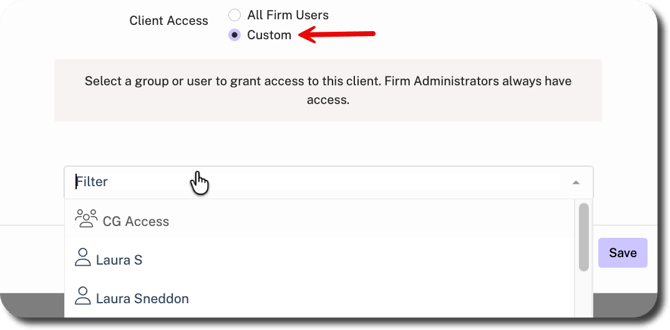
4. Click Save.
Was this article helpful?
YesNo