Multi-Factor Authentication (MFA)
The Crunchafi Lease Accounting Multi-Factor Authentication (MFA) feature enhances account security by requiring users to enable TOTP-based verification via an authenticator app like Microsoft Authenticator, which involves managing the account settings, scanning a QR code, and verifying a six-digit code to activate the additional login protection.
Multi-Factor Authentication (MFA)
This article provides a quick overview of MFA, including how to enable and disable the feature
.
Multi-Factor Authentication (MFA) is a highly effective method to enhance security for your account and ensure that only authorized users can access it. Crunchafi Lease Accounting MFA specifically uses Timed One Time Password (TOTP) technology, which requires the use of an authenticator application such as Microsoft Authenticator. By enabling MFA for your account, you add an extra layer of protection against unauthorized access and login attempts.
IMPORTANT
If you have enabled MFA on your account but no longer have access to the authentication application, contact your admin for assistance.
Enabling MFA
1. Click your name in the top-right corner and select Manage Account.

2. Click Enable MFA under the Multi-Factor Authentication section.
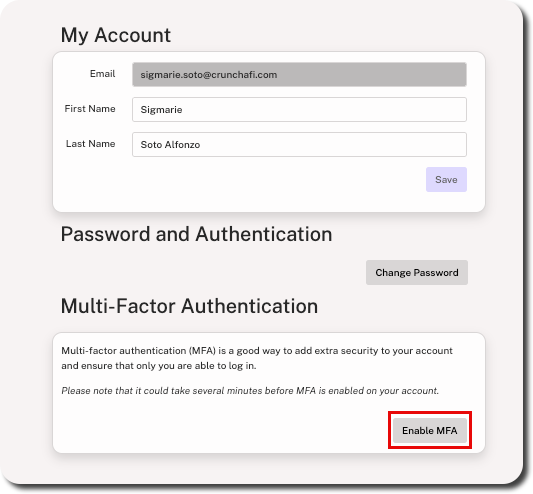
3. Download the Microsoft Authenticator App on your mobile device from the Google Play Store or Apple App Store. Scan the QR Code from the app and click Continue in the software.
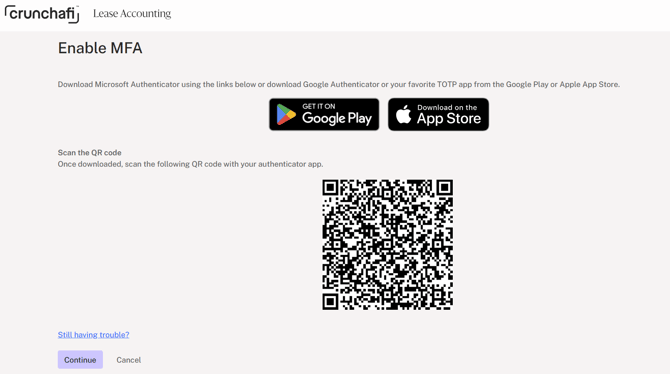
4. Enter the six-digit code on the next screen and click Verify.
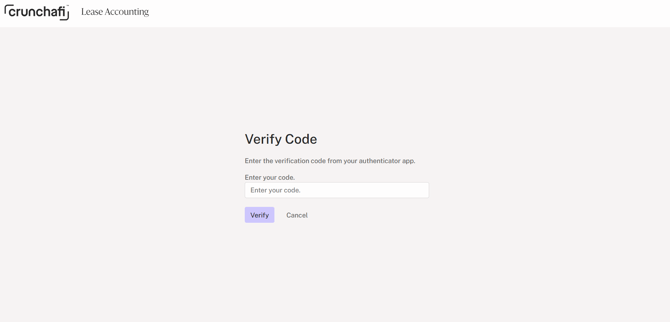
MFA is now enabled and will be required for all future login attempts on your account.
Removing MFA
1. Go to Manage Account.
2. Click the Remove MFA under Multi-Factor Authentication section.
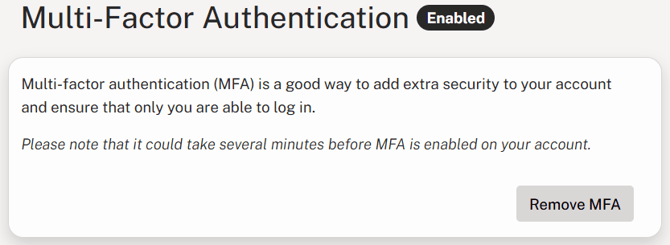
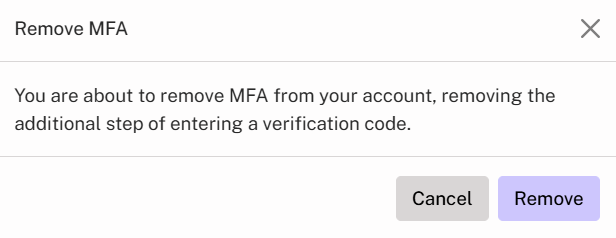
3. Click Remove when prompted to confirm.
REMINDER
If you no longer have the mobile device with the Authenticator Application, your admin can remove MFA from your account.
Was this article helpful?
YesNo