Troubleshooting Bulk Import Error Logs
The troubleshooting guide for bulk import errors in Crunchafi Lease Accounting advises users to avoid bulk import for fewer than 30 leases, split files into 50 or fewer leases, complete all administrative setup steps, enter one lease per row following strict formatting rules (especially in row 3), use the latest import template downloaded from the Bulk Import screen, and ensure all cells are formatted correctly to prevent errors.
Troubleshooting Bulk Import Errors
Check the areas below if you are having trouble importing leases in bulk
Tips for Getting Started
- If you have fewer than 30 leases, we do not recommend the bulk import feature. You will have a faster experience by adding leases through the add lease workflow, either manually or by using our AI lease abstraction feature.
- We recommend splitting your file into 50 or fewer leases per import file.
- Before attempting bulk import, make sure to complete all steps in the Administration Setup Checklist (FASB or GASB), including Reporting Entities, GL Accounts, and Customization.
- Enter only one lease per row.
- Be sure to follow all the instructions on row 3 when entering data for that column. Some columns will have special formatting requirements, and cannot include any special characters.
- All cells should be formatted as text, except for dates, which can be formatted as a date (mm/dd/yyyy) or text. Follow the specific instructions listed in row 3 for more details.
Template Error
- Make sure you're using the most recent Bulk Lease Import Template. This template can be downloaded from the Bulk Import screen. The version will be shown in the System Tab of the template and should match the Import Leases screen.
- Review the template for multiple tabs (Leases and System) and do not make changes. There should be no additional columns and no blank rows in between leases.
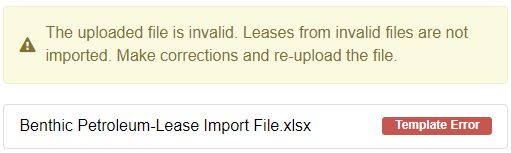
- If you use the wrong template version or make invalid changes to headers or other areas, you will receive a template error similar to the one shown below:
TIP
To resolve a template error, download the current template version, copy/paste the lease rows to the new file, and try the upload again.
Validation Error
The spreadsheet will only import if all lease rows are successfully validated. If one or more leases have errors, the entire import will fail and you will receive the following validation error:
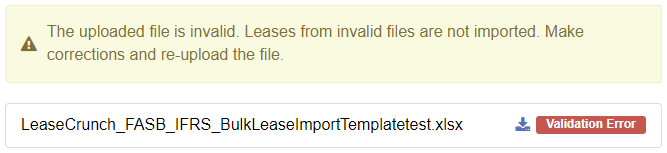
Click the download icon to the left of the error tag to export and view the error log.
The error log is color-coded, with leases that could not be validated labeled yellow and the cells or cells that caused the validation labeled in red. See the example below:
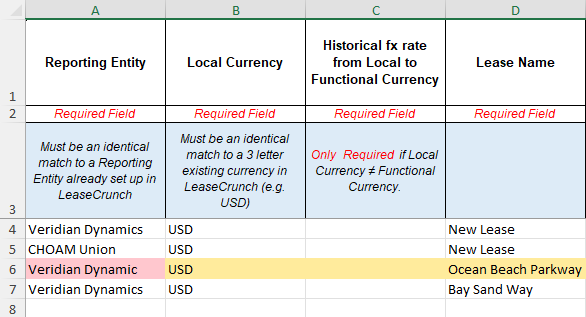
In the above example, row 6 is colored yellow, indicating an error has occurred on this lease row. Cell A6 is colored red, indicating that something could not be validated with the name of this Reporting Entity.
TIP
Changes to cells with errors can be made directly to the error log, which can then be saved to your device and uploaded again to retry the import.
Validation Error Types
These are some of the more common validation errors that can occur. If a lease row is showing an error cell in one of the columns listed below, here are some tips for fixing the error.
Reporting Entity
- If the name of a Reporting Entity in the bulk import template does not have a corresponding Reporting Entity setup in the Administration menu, a validation error will occur and the Reporting Entity column will be highlighted in red.
- Confirm that the Reporting Entity names in your file matches the spelling that appears under the Administration tab in the software.
NOTE
If a Reporting Entity cannot be validated, it may also cause errors in the following columns: Start Date, GL Account Number, Asset Type, Location, or Lessor Name.
Asset Type, Location, or Lessor Name
- If a row has an error under the Asset Type, Location, and/or Lessor Name columns in the bulk import file, confirm that the spelling matches what appears under the Administration tab of the system.
- Another issue to check for is entering the Asset Type, Location, and/or Lessor Name under the wrong Reporting Entity in the bulk import file.
- Confirm there are no trailing or leading white spaces for the values in these cells that would cause validation errors.
\# of Payments
- An error in the # of Payments column usually means that the lease payments extend beyond the end date of the lease.
- Confirm that, when combined, the Payment Start and # of Payments columns do not cause a payment date to occur after a date that is listed in the End Date column. See the example below:
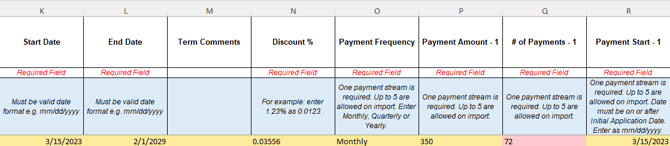
- In the above example, the lease Payment Start date is 3/15/2023. With 72 payments, that would cause the final lease payment to occur on 2/15/2029, which would occur after the lease End Date of 2/1/2029.
Bulk Import Data Limitations
Below are the limitations for the data that can be imported for individual leases.
- Limit of 5 payment streams per lease. Do not enter more payment streams on another, as each row corresponds to an individual lease.
- Limit of 2 cost center allocations per lease.
- Limit of 3 existing balances from previous lease accounting guidance.
- Limit of 5 custom fields.
NOTE
If your leases require more entries than what can be imported, they can be updated within the software after the lease data is successfully imported.
If you need additional assistance with troubleshooting bulk import errors, reach out to [email protected] and include the original bulk import file.
Was this article helpful?
YesNo