What if the Initial Application Date is entered incorrectly?
The article explains how to correct an incorrectly entered Initial Application Date for a Reporting Entity in Crunchafi Lease Accounting, detailing that if the entity has no associated leases, an administrator can directly edit the date via the Administration > Reporting Entity section, while different procedures apply if leases are involved or if the date is earlier or later than intended.
What if the Initial Application Date is entered incorrectly for a Reporting Entity?
How to fix an incorrect Initial Application Date depends on whether there are any associated leases
Choose an option below for instructions.
Reporting Entity with No Leases
Reporting Entity with Initial Application Date that is Earlier than Intended
Reporting Entity with Initial Application Date that is Later than Intended
Reporting Entity with No Leases
The Initial Application Date can only be changed for a Reporting Entity if it has not yet been associated with any leases. The steps below must be completed by an Administrator:
1. Go to Administration > Reporting Entity.
2. Click the pencil icon under the Actions column for the relevant Reporting Entity.
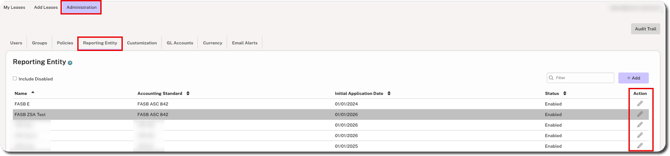
3. Adjust the date and click Save in the bottom-right corner.
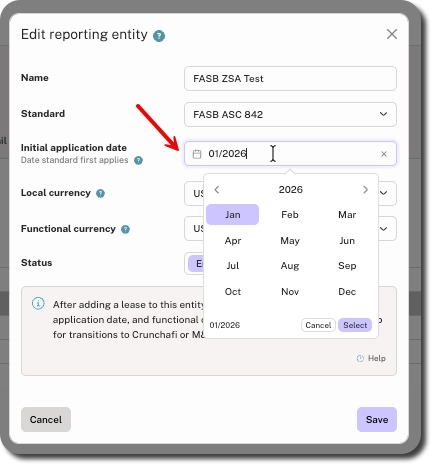
To determine the Initial Application Date under FASB ASC 842, click here for our FASB Initial Application Date calculator.
To determine the Initial Application Date under GASB 87, click here for our GASB Initial Application Date calculator.
NOTE
If the Initial Application Date field is disabled, this means that there are one or more leases associated with the Reporting Entity. Continue below for instructions.
Reporting Entity with Early Initial Application Date
If the Initial Application Date on a Reporting Entity is earlier than it should be, follow the steps below to make the correction. Steps 1-4 must be completed by an Administrator.
1. Go to Administration > Reporting Entity.
2. Click the pencil icon under the Actions column for the relevant Reporting Entity.
3. Select the Disabled status and click Save.
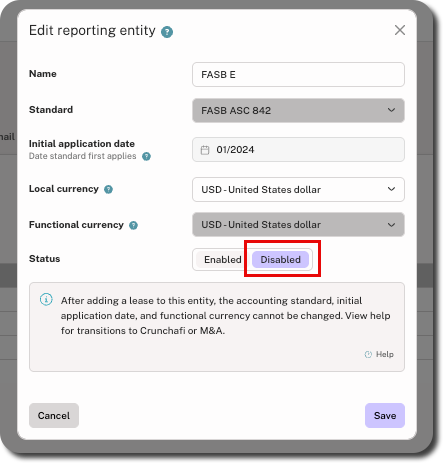
4. Add a new Reporting Entity with the correct Initial Application Date, including:
- Updating/adding Locations, if applicable (locations are Reporting Entity specific)
- Updating/adding GL Accounts for the new Reporting Entity (GL Accounts are Reporting Entity specific)
5. Edit each lease linked to the disabled Reporting Entity to be associated with the new Reporting Entity. You must follow this order for the edits:
- Lease Payments: Make sure the start of lease payments is on or after the Initial Application Date of the new Reporting Entity. This also applies to Variable & Non-Lease Payments.
- Lease Start Date: Make sure the lease start date is on or after the Initial Application Date of the new Reporting Entity.
- Reporting Entity: Update the Reporting Entity.
IMPORTANT
If this order is not followed, you may receive one of the following error message:

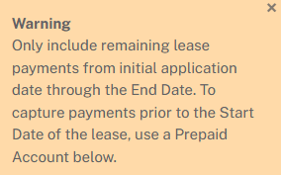
Reporting Entity with Late Initial Application Date
If the Initial Application Date on a Reporting Entity is later than it should be, follow the steps below to make the correction. Steps 1-4 must be completed by an Administrator.
1. Go to Administration > Reporting Entity.
2. Click the pencil icon under the Actions column for the relevant Reporting Entity.
3. Select the Disabled status and click Save.
4. Add a new Reporting Entity with the correct Initial Application Date, including:
- Updating/adding Locations, if applicable (locations are Reporting Entity specific)
- Updating/adding GL Accounts for the new Reporting Entity (GL Accounts are Reporting Entity specific)
5. Edit each lease linked to the disabled Reporting Entity to be associated with the new Reporting Entity. You must follow this order for the edits:
- Reporting Entity: Update the Reporting Entity.
- Lease Start Date: Make sure the lease start date is on or after the Initial Application Date of the new Reporting Entity.
- Lease Payments: Make sure the start of lease payments is on or after the Initial Application Date of the new Reporting Entity. This also applies to Variable & Non-Lease Payments.
IMPORTANT
If the order of edits is not followed, you may receive an error message.
Other Considerations
To adjust the dates and Reporting Entity for leases, some lease payments may need to be deleted and re-added.
Review each lease for the following information:
-
Description & Term: Update the Location, if applicable.
-
Lease Payments & Classification: Re-enter any deleted lease payments.
- Update GL Accounts if there are Existing Balances under Previous Lease Guidance for transition leases (Lease Payments OR Lease Receipts).
-
GL Accounts: Review and save to update the accounts so that they are associated with the new Reporting Entity.
-
Variable Expense & Non-Lease Payments: Update GL Accounts, if applicable.
Was this article helpful?
YesNo