How do I add firm users?
To add new firm users in Crunchafi Lease Accounting, a Firm Administrator must be logged into the firm-level view, navigate to the Users tab, click the Invite button (if available), then enter the user's email, first and last name, and assign the appropriate role, noting that if the Invite button is missing, either the user lacks Firm Administrator permissions or the firm uses SSO requiring IT to add users.
Adding New Firm Users
Users can be added to Crunchafi Lease Accounting by Firm Administrators
This article covers how to add users at the firm level. If you are looking for instructions on how to add users under a specific client account, click here.
Take the following steps while logged in as a Firm Administrator:
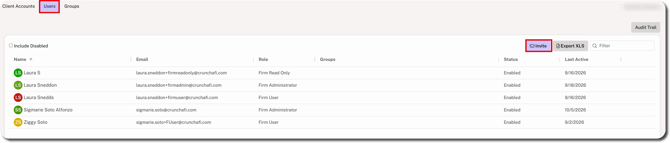
1. Confirm you are at the firm-level view (firm name displayed in top-right corner).

2. Go to the Users tab and click the Invite button.
NOTE
If the Invite button is not displayed, this means: 1) you do not have Firm Administrator permissions, OR 2) the firm is using SSO and you must contact IT to add new users.
3. Enter the user's email address, first name, and last name, and choose the relevant role.
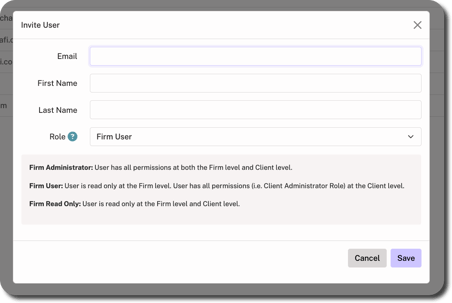
- Firm Administrator: All permissions at both the firm and client level. Only Firm Administrators can see the firm-level operational audit trail.
- Firm User: Read-only permissions at firm level but all permissions at client level.
- Firm Read Only: Read-only permissions at both the firm and client level.
4. Click Save in bottom-right corner.
Once saved, an invitation email is sent to the user with an activation link for account setup.
Firm-Level Permissions
More information about permissions for each role is shown below:
Permissions at Firm Account
Firm Administrator
Firm User
Firm Read Only
Client Accounts Tab
Add/Edit
View Only
View Only
Users Tab
Add/Edit
View Only
View Only
Groups Tab
Add/Edit
View Only
View Only
Audit Trail
View Access
No Access
No Access
Permissions at Client Account
All Permissions **
All Permissions **
View Only *
** Same rights as Administrator role at the Client Account
* Same rights as Read Only role at the Client Account
For a list of permissions for different roles at the Client Account level, see our FASB / IFRS or GASB Help Guidance.
Was this article helpful?
YesNo